How To Format and Bulk Import Random Lists
Random Lists supply reusable results for variables such as {list:prizes}. Data Manager can import one list from a text file or many weighted lists from CSV or JSON.
Open the Importer
- Open Bot Commands → Data Manager.
- Select Lists.
- Select Import.
- Choose a
.csv,.json, or.txtfile.
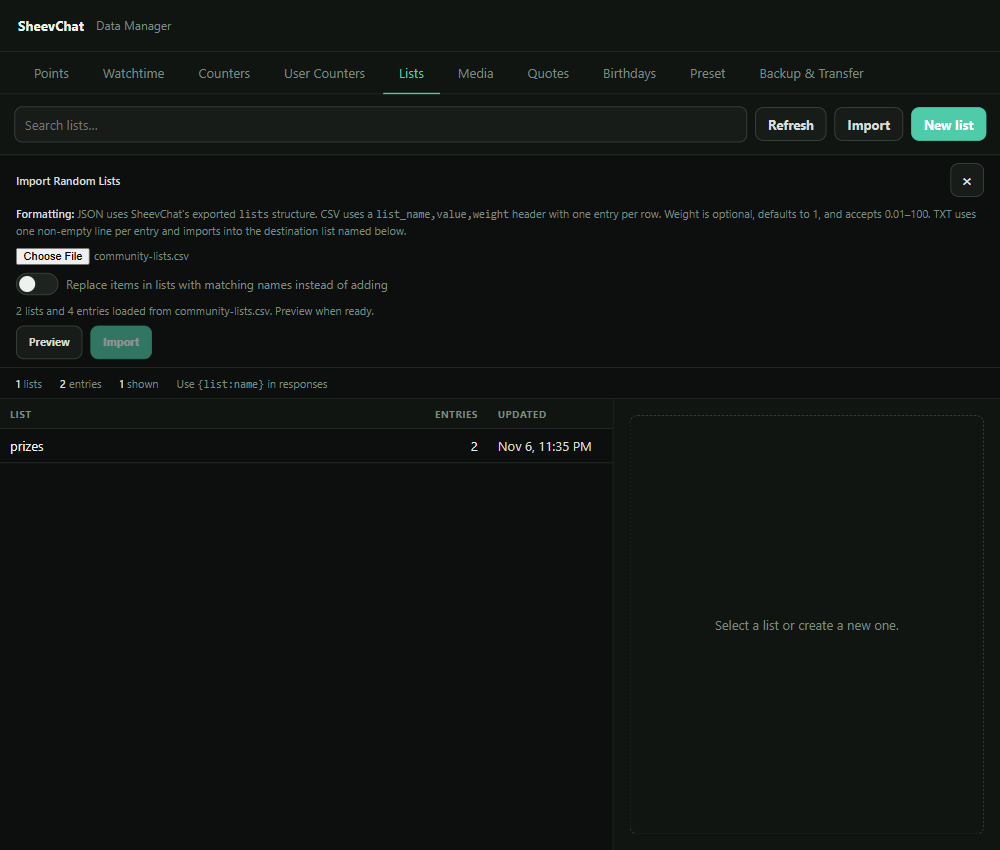
Choose a Format
CSV: Several Lists
Use the header list_name,value,weight, then add one entry per row:
list_name,value,weight
prizes,VIP game choice,3
prizes,Sticker pack,1
stream-prompts,No healing challenge,1
stream-prompts,Chat picks the loadout,0.5
weight is optional and defaults to 1. Higher values are more likely to be selected; lower values are rarer. Accepted weights are 0.01 through 100.
If an entry contains a comma or quotation mark, use normal CSV quoting:
prizes,"Choose the game, map, and mode",1TXT: One Simple List
Use one non-empty entry per line:
VIP game choice
Sticker pack
Choose tomorrow's challenge
SheevChat uses the filename as the destination-list name. You can change that name after selecting the file. TXT entries always use weight 1.
JSON: SheevChat Structure
Use the structure created by SheevChat's JSON export:
{"lists":[{"name":"prizes","items":[{"value":"VIP game choice","weight":3},"Sticker pack"]}]}String entries default to weight 1. JSON may also contain the list array directly without the outer lists object.
Follow the Naming Rules
- List names may contain lowercase letters, numbers, underscores, and hyphens.
- Names must begin with a letter or number and cannot exceed 50 characters.
- Each entry must contain text and cannot exceed 480 characters.
- A file cannot repeat the same list name in separate list objects.
- One import supports up to 1,000 lists and 100,000 total entries.
Preview Before Importing
After the file loads, select Preview. SheevChat reports how many lists would be created or updated and how many entries would be added.
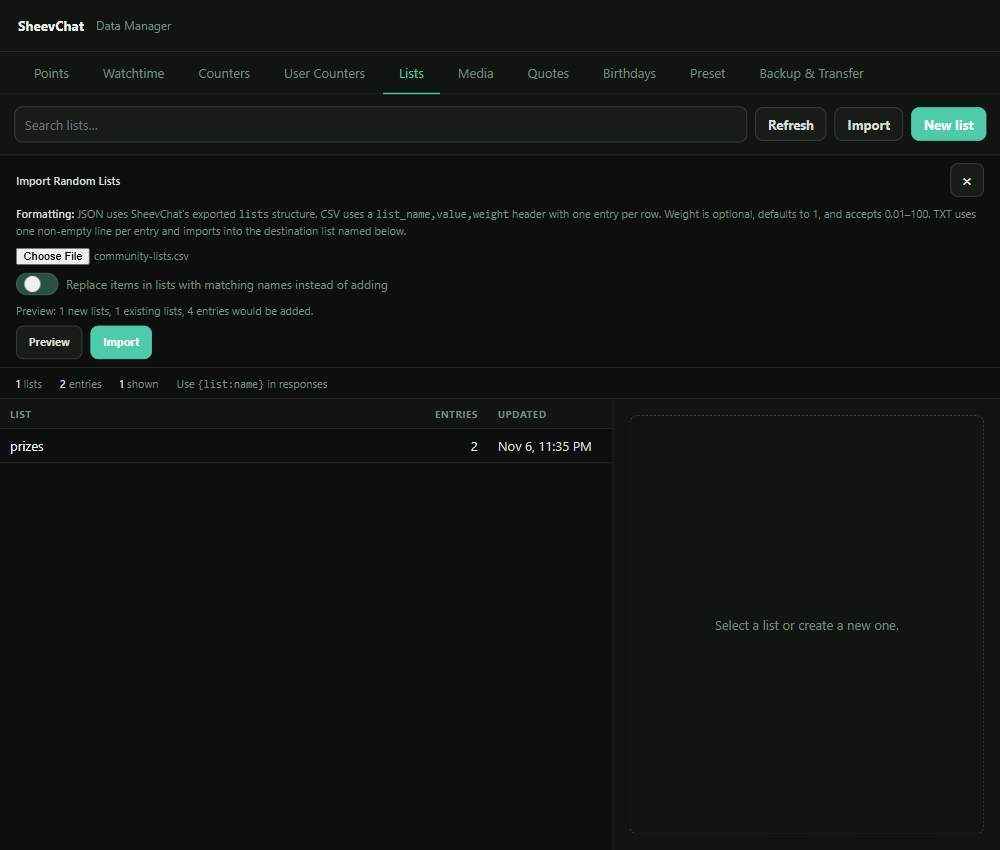
By default, entries are added to lists with matching names. Enable Replace items in lists with matching names only when the imported file should become the complete contents of those lists.
Preview does not change your saved lists. If you change the TXT destination name or replacement option, preview again so the summary reflects the final choice.
Complete and Check the Import
- Confirm whether matching lists should be added to or replaced.
- Select Import.
- Select an imported list and review its entries and weights.
- Test it in a command or action with
{list:list-name}.
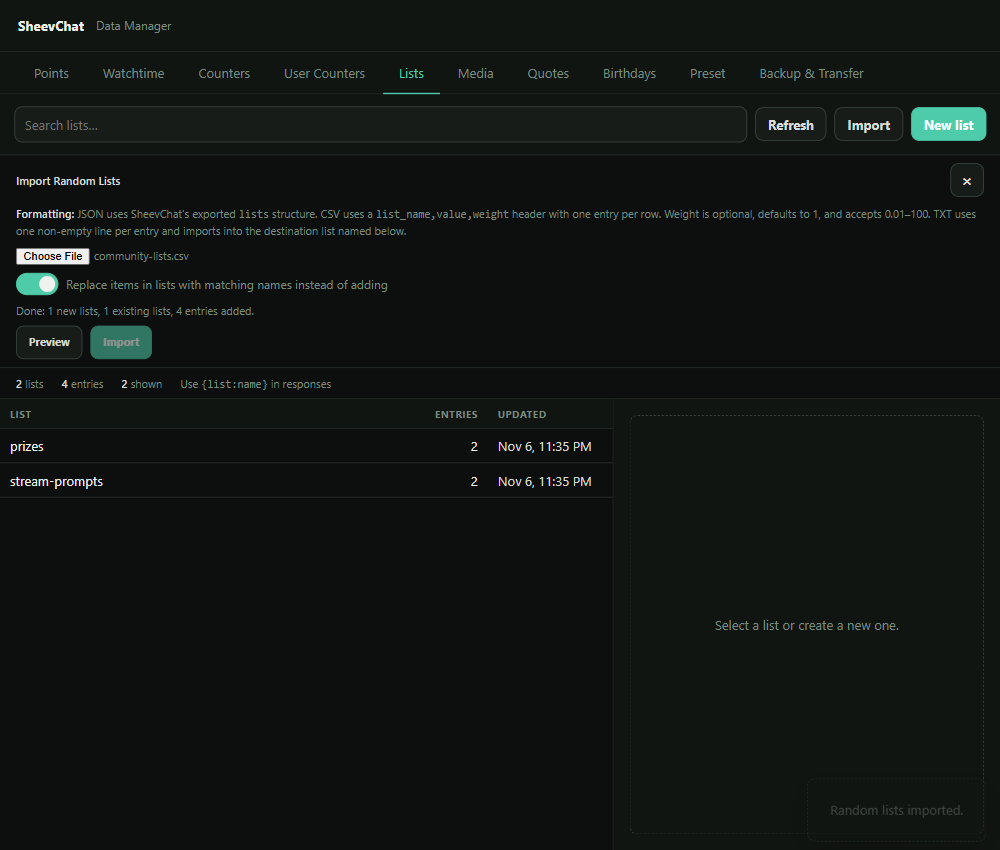
Back up SheevChat before replacing a large existing list collection. For building a command from the imported data, see How To Create Random and List-Based Chat Commands.
Common Problems
- CSV rows are rejected: Confirm the first row contains column names and every entry has both a list name and value.
- List name is invalid: Use only letters, numbers,
_, and-; avoid spaces. - Weight is invalid: Use a number from
0.01through100or leave it blank for1. - Existing entries were duplicated: Add mode appends to matching lists. Use Replace only after confirming the file contains the full desired list.
- Import button stays disabled: Run Preview successfully after the latest file, name, or replacement change.